Loading
Loading
Loading
When you work with the graphical template in EasySignup, you can adjust the upper part of the registration pages to your specific branding.
It is important to place the logo in the rigth place in order for the logo to be shown correctly. When you have read this guide, you understand where and why you need to place the logo and the top banner separately in the graphical template.
If you need support to create a graphical template you find it here.
The upper part of the registration pages consists of 2 elements: logo and top banner.
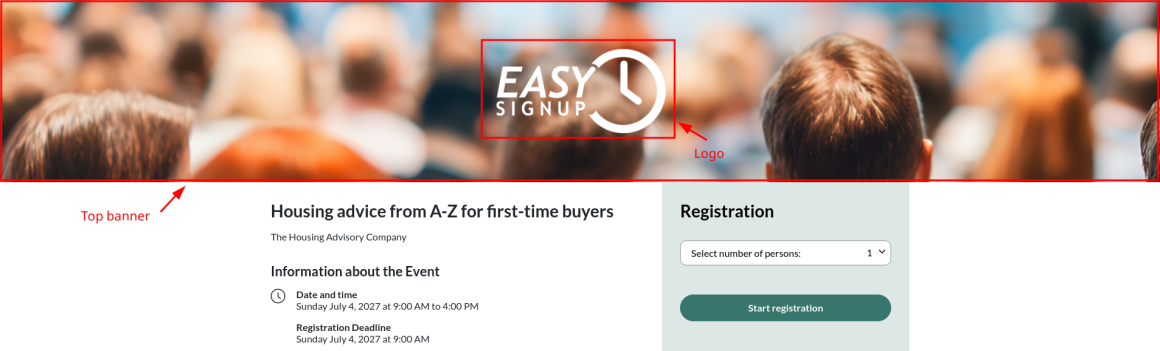
You can place the logo aligned to the left, to the rigth or in the middle.
The top banner can be 1) one of the predefined top banners that EasySignup put at your disposal. It can be 2) a solid color of your choice. Or 3) you can design your own top banner and upload it.
You must upload 1) logo and 2) top banner separately in EasySignup.
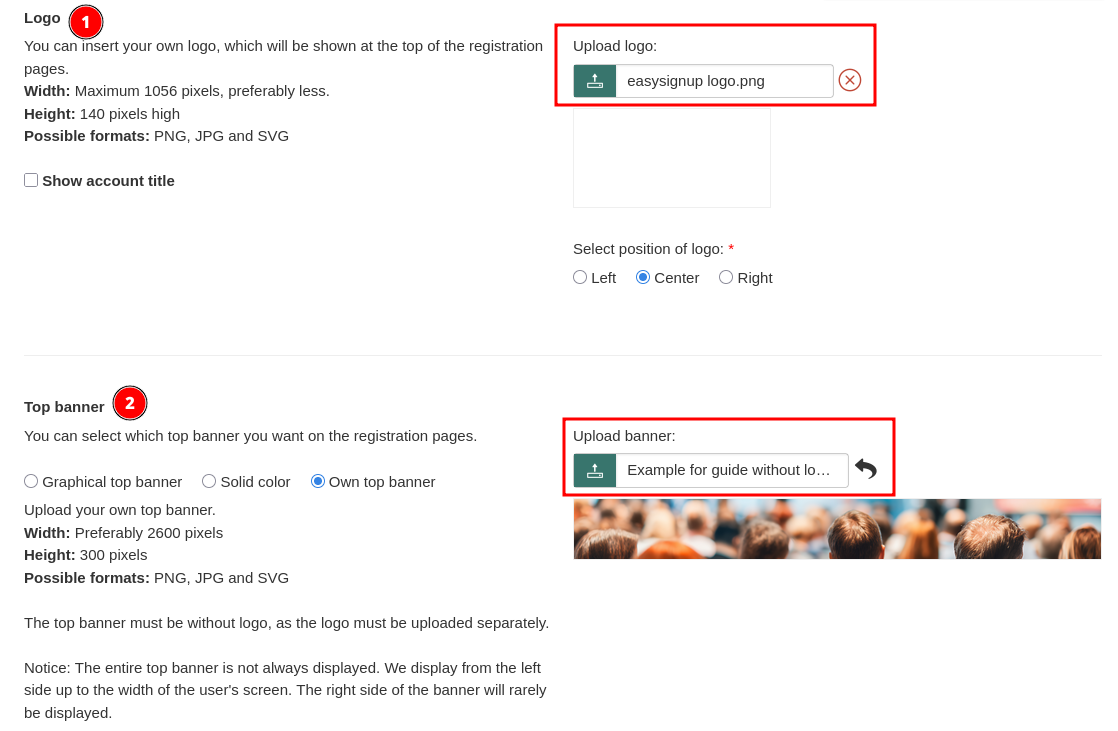
It may be tempting to place the logo on the top banner you design in order to only upload 1 file. If you do this you risk that the logo is not shown correctly—or in worst case not at all visible. You solve this by uploading logo and top banner separately.
To understand the importance of separating the logo and the top banner, you must understand that participants see your registration page on different screens with different sizes: desktops, tablets and mobiles.
The top banner adjusts to the used type of screen which causes parts of the topbanner to be cut off when shown on various screens—especially on tablets and mobile screens. In this process, parts of the top banner—where the logo is placed—may be cut off and thus will not be shown if the two parts are not uploaded separately.
The logo also adjusts to the used type of screen from where the participant sees the registration page, but contrary to the top banner, no parts of the logo will be cut off if uploaded separately from the top banner.
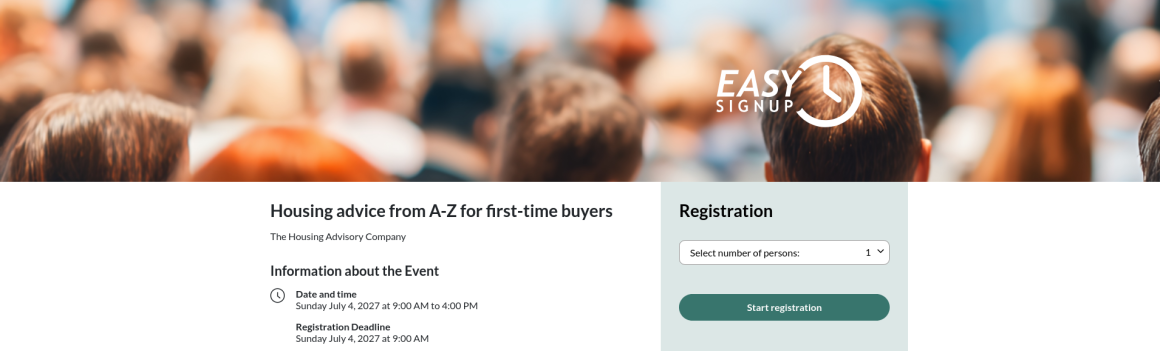
| The registration page shown on a desktop screen with the logo NOT being uploaded separately. |
 |
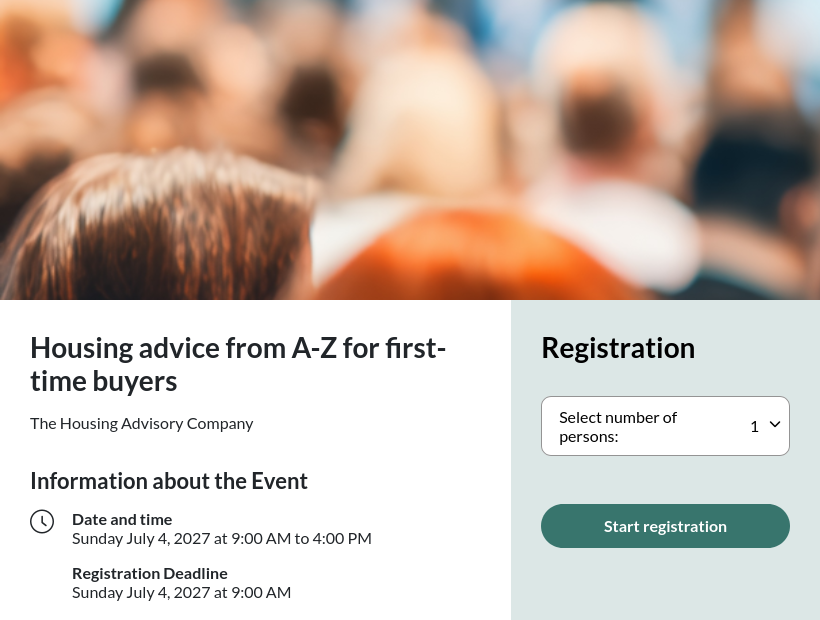
The registration page shown on a tablet screen with the logo NOT being uploaded separately. The top banner adjusts to a more narrow screen causing the logo to not be shown. |
 |
|
|
 |
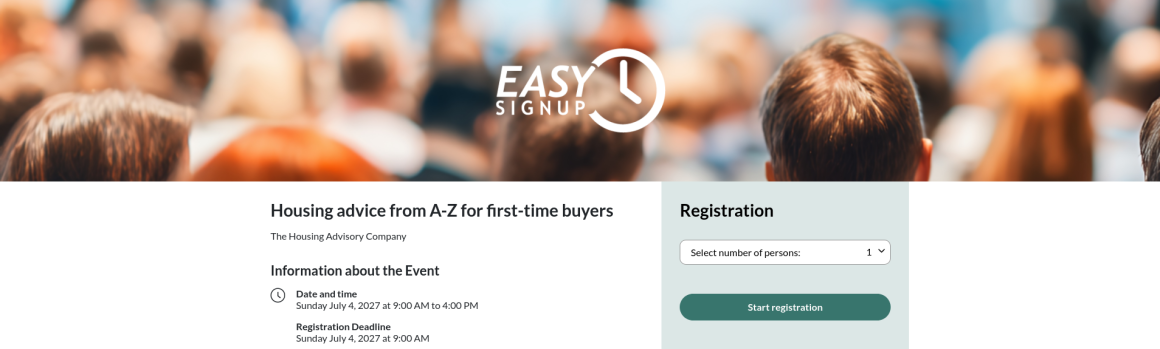
| The registration page on a desktop screen with the logo uploaded separately. |
 |
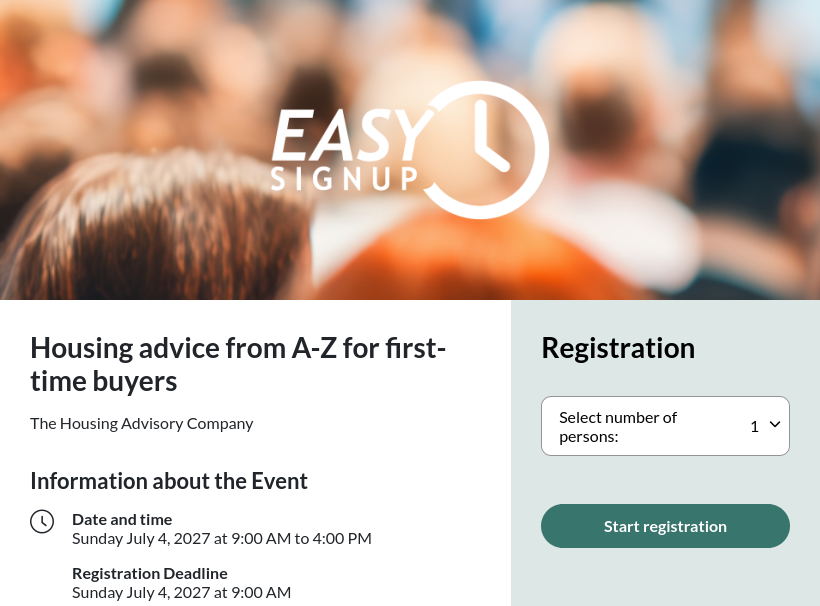
The registration page on a tablet screen with the logo uploaded separately. The top banner adjusts to the narrow screen but the logo remains. |
 |
The registration page on a mobile screen with the logo uploaded separately. The top banner adjusts to the narrow screen but the logo remains. |
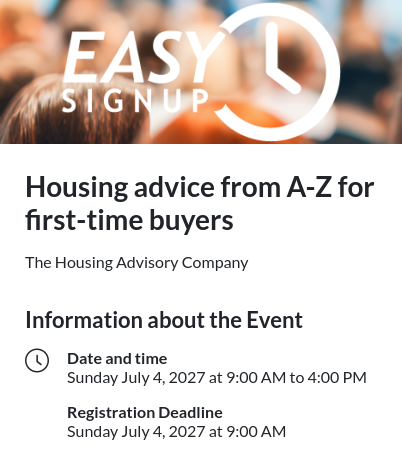 |
If you want to be certain that the logo is displayed correctly from the graphical template, you need to upload the logo separately and not include it in the top banner uploaded to EasySignup.
We've made a series of videos showing you how to use EasySignup.
Watch introductory videosWhether you are a participant or an organizer, some of the questions you might have about the IT-system are answered here.
Read the answers
Mette Jellesen and Jacob Thomsen
Support and Communication